
Image
We’ve already covered how to configure several rich text blocks. But what about images? In this section, we’ll learn how to add and handle images in Magicube — including how they’re uploaded and rendered.

Image Block
The image block is what's known as a void block. It doesn’t hold text, but instead stores dynamic properties like src, width, and height. The are all defined in the block’s data and stored inside your JSON document.
To use the image block, install the plugin:
npm install @magicube/editor-image-plugin
Note: The image block is not included in the default typography plugins package mostly because it includes a additional dependencies. It uses re-resizable to handle resizing and react-dropzone for image input.
Once installed, integrate it into your editor like this:
"use client";

import { Editor, createMagicubeEditor } from "@magicube/editor";
import { makeBlocks, makeMarks } from "@magicube/editor-typography-plugins";

import "@magicube/editor/styles.css";
import "@magicube/editor-typography-plugins/styles.css";
import "@magicube/editor-image-plugin/styles.css";

const editor = createMagicubeEditor({
  plugins: {
    blocks: [...makeBlocks(), makeImagePlugin()],
    marks: makeMarks(),
  },
});

function ImageEditor() {
  return <Editor editor={editor} />;
}

export default Editor;
image-plugin
 Live Example
The configuration is very similar to the previous we did. Here, we add the Image Plugin alongside with the Typography block plugins.
Now, You can easily upload an image by adding a new image block in the block menu. You can choose it from the file system or just drop it into the box area. The block also includes a resizable interface to adjust dimensions interactively.
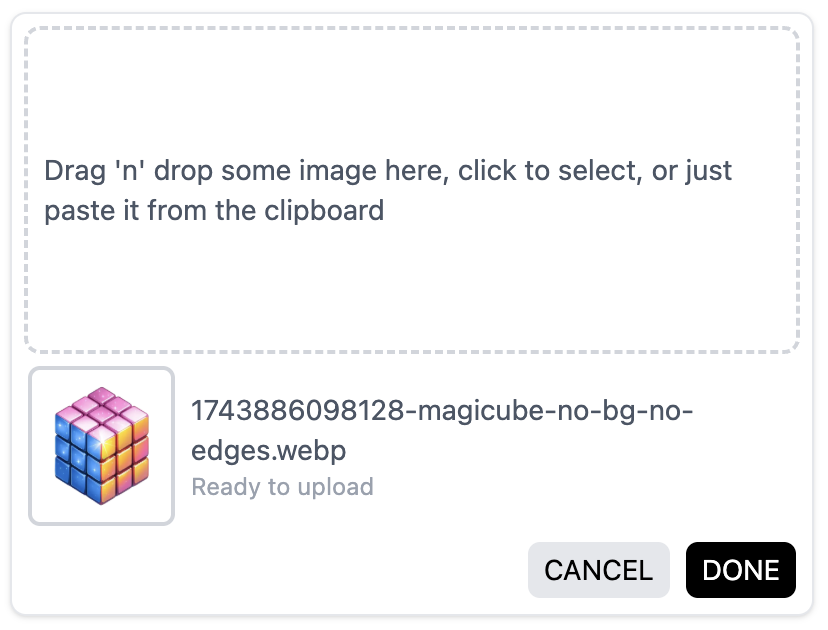
So far so good, but there is some caveat: where is the image going to? 🤔
Image Upload
If you go to the example page and create a new image block and inspect the HTML, you will notice that src attribute of the image tag is something in the format bellow
"blob:https://{domain}/8a928d5a-3fa5-4da7-bde6-789b93dc37f6"This is great for demos or prototyping—but not ideal for production, since these URLs are temporary and only work in the current browser session. To persist images, we recommend setting up a custom getURL function that uploads the file and returns a public URL.
getURL Function
Notice that the makeImagePlugin receives an object with getURL function which is
const editor = createMagicubeEditor({
  plugins: {
    blocks: [...makeBlocks(), makeImagePlugin({ getURL })],
    marks: makeMarks(),
  },
});

//...
type GetURLFn = (file: File) => Promise<string>;
This function receives the file the user uploaded. It is injected by the plugin itself. The output is a string Promise that should be a valid URL. Bellow we have an implementation of example. You should adapt it to your own needs and your server's API.
export const uploadImage: GetURLFn = async (file: File): Promise<string> => {
  // add file to form data
  const formData = new FormData();
  formData.append("file", file);

  // upload to the server
  const response = await fetch("/path/to/server/image/upload", {
    method: "POST",
    body: formData,
  });

  // handle response
  if (!response.ok) {
    const error = await response.json();
    throw new Error(error.message || "Failed to upload image");
  }

  const data = (await response.json());
  return data.url; // return url as an object { url: "https://..." }
};
This URL will then be stored inside your document JSON instead of the blob: one.
Base64 Approach
As an alternative (though not recommended for performance reasons), you could convert the image into a base64 string:
export const getURL = (file: File): Promise<string> => {
  return new Promise((resolve, reject) => {
    const reader = new FileReader();
    // Set up the reader event handlers
    reader.onload = () => {
      // Ensure the result is a string (Data URL)
      if (reader.result && typeof reader.result === "string") {
        resolve(reader.result);
      } else {
        reject(new Error("FileReader did not return a string result."));
      }
    };
    reader.onerror = () => {
      reject(reader.error);
    };
    // Read the file as a Data URL, which will convert it to base64
    reader.readAsDataURL(file);
  });
};
That will work, but it is not recommended for several reasons. From the editor's perspective, you might have a document JSON that is updated whenever you type, but it contains heavy data, which can lead to significant performance issues.
Next section we gonna explore another available block: code highlighting.